MuniMins uses voice recognition technology to identify who is speaking in your meeting recordings. The system learns each speaker's voice over time, getting more accurate with every meeting you confirm.
How It Works
- When your minutes are ready, open the Speaker Training panel at the top of the minutes page. It is collapsed by default; its header shows how many speakers have been identified.
- For each voice, play a sample, then confirm or change who it is.
- When you confirm a speaker, MuniMins saves their voice to that person's voice profile.
- In later meetings, MuniMins compares each voice to the saved profiles and suggests a name. The more meetings you confirm, the stronger the match.
- A voice profile can be created for Board Members, Participants and Guests.
Before a voice profile exists, MuniMins uses context clues from the meeting — names spoken aloud, roll calls, who the chair calls on — to suggest who each speaker is. MuniMins works from the audio only, so people who don't speak won't appear.
Each speaker card also shows whether the person is a Board Member, Guest or Participant in your organization.
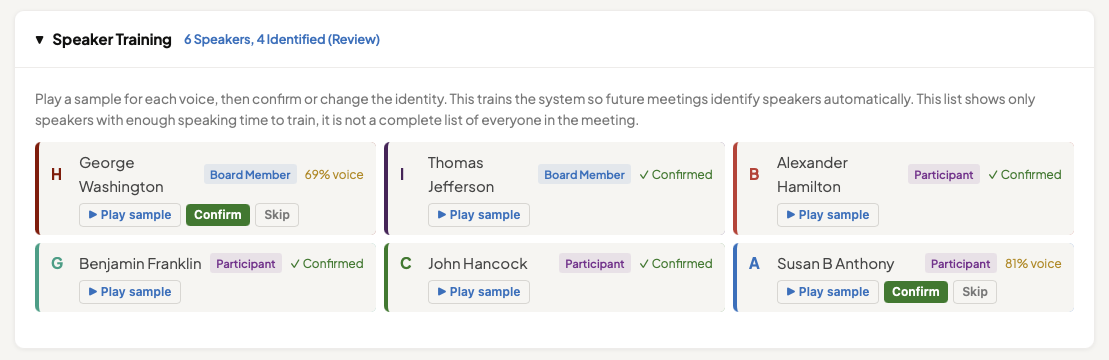
The panel lists only speakers with enough speaking time to train a voice profile, so it isn't a complete list of everyone who spoke at the meeting. People who spoke only briefly can still be named in the transcript (see below).
Reading the Speaker Cards
Each card shows a suggested name with one of two labels:
- HIGH, MEDIUM or LOW — a suggestion based on context clues in the meeting, with MuniMins' confidence in it.
- A percentage, such as "91% voice" — a match against a saved voice profile.
Suggestions are never saved on their own. Every speaker needs to be confirmed by you.
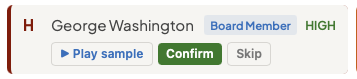
In this example, MuniMins identified "George Washington" with high confidence and recognized him as a board member. Play the voice sample, then click Confirm to tell MuniMins to remember how this speaker sounds.
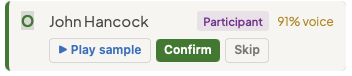
Here, the voice profile for John Hancock matched with a 91% score.
Card buttons
- ▶ Play sample — plays a short clip of that voice.
- Confirm — accepts the suggested name and adds the voice to that person's profile.
- Change — assigns the voice to a different person.
- Identify… — appears when MuniMins heard a name that isn't on your roster yet, so you can choose who it is.
To name an unidentified speaker, click its card. A search box opens: pick a person from the list to link the voice to their profile. Naming a speaker updates every line they spoke in the transcript.
If the person isn't in MuniMins yet, type their name and choose one of these options:
- Add Name (Don't Remember) — names the speaker for this meeting only. No voice profile is saved and they aren't added to attendance. Use this for public commenters and one-time presenters.
- Remember as Participant — adds them to your organization's Participants and starts their voice profile.
- Remember as Guest — adds them as a Guest of this board and starts their voice profile.
Clear Name, at the bottom of the search box, returns a speaker to unidentified.
Fixing a single line in the transcript
In the Transcript section of the minutes page, click any speaker tag to reassign just that one line. This is the way to fix someone who spoke only briefly and doesn't appear in the Speaker Training panel. Transcript edits don't train voice profiles, but they are used when you regenerate the minutes.
After you change who spoke, MuniMins shows a banner saying the minutes are out of date. Regenerate the minutes to update the narrative. See Regenerating Minutes.
The Training Period
Most voices need a few confirmed meetings to build a reliable profile. Each meeting has slightly different audio — a member may join remotely, or the meeting may be held in a different room — and the more the audio varies, the longer training takes.
| Meetings Confirmed | What Happens |
|---|---|
| 1st meeting | No profiles exist yet. You confirm or assign each speaker, and profiles are created. |
| 2–4 meetings | MuniMins suggests matches with a voice percentage. Confirm each one to strengthen the profile. |
| 5+ meetings | Profiles are strong and matches are more confident. Review and confirm them — MuniMins never saves a match without your confirmation. |
To check a person's voice profile, open the Members, Participants or Guests page. The Voice Profile column shows No profile, Building (1–4 confirmed meetings) or Strong (5 or more).
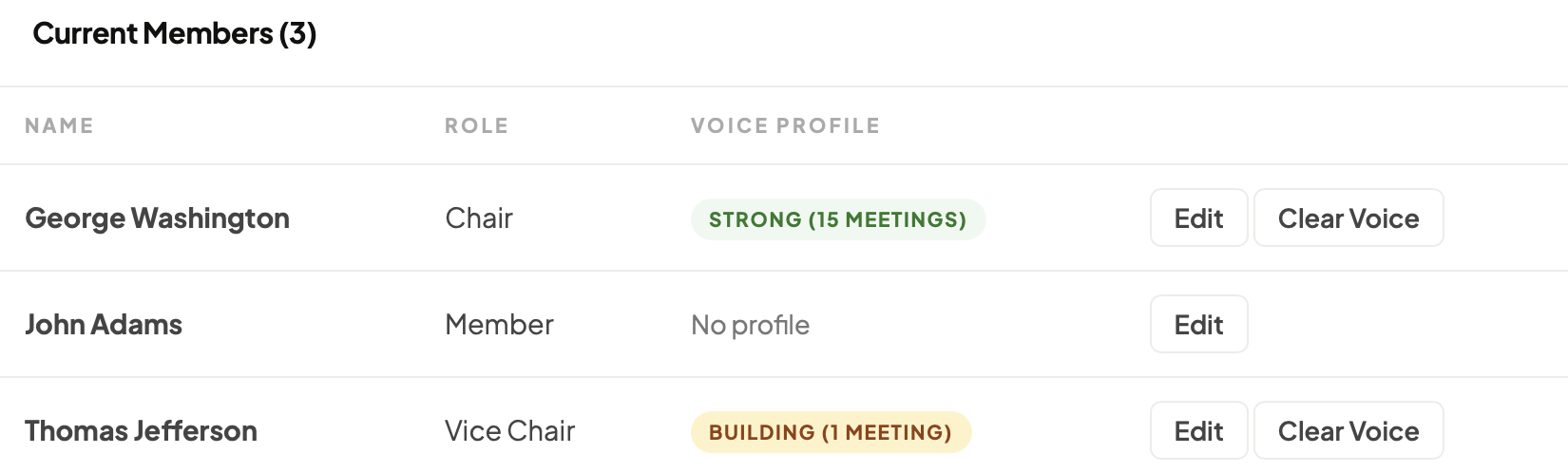
In this example, George Washington has a "Strong" profile with 15 meetings where his voice was confirmed. Mr. Jefferson has only one, while Mr. Adams' voice hasn't yet been confirmed in speaker training.
Tips for Best Results
- Confirm speakers in the first meeting for each new board — this gives MuniMins the most to work from going forward.
- A voice profile belongs to the person, not the board. If someone sits on several boards, add them to each board with Add existing member rather than creating a new member, and their profile carries across. A person entered separately as a board member and as a participant has two separate profiles.
- Audio quality matters. Recordings with clear, separated audio (individual microphones or a good conference mic) produce better profiles than a laptop mic in a large room.
- If a member is inconsistent about how they participate (remote vs. in person), or meetings take place in different rooms or use different recording equipment, the voice profile will take longer to build.
What About New Members?
When a new board member or participant joins, they start with no voice profile — just like when you first set up MuniMins. After they speak in a few meetings and you confirm their identity, their profile builds up and MuniMins will suggest them by voice.
If a member leaves and is replaced, add the new member on the board's Members page. Their voice profile builds independently.
Frequently Asked Questions
Do I need a microphone for each speaker?
No. MuniMins works with a single recording source — even a camera at the back of the room. MuniMins recognizes speakers through voice identification or, when there is no voice profile match, through context.
What if the system identifies someone incorrectly?
Open the Speaker Training panel, click Change on that speaker's card, and choose the right person. This corrects the meeting and the voice profile.
Can I reset a voice profile?
Yes. An Organization Owner or Admin can click Clear Voice next to the person on the board's Members page or on the Participants page. The profile is rebuilt from the meetings you confirm afterward. Guests don't have a Clear Voice button.
How many speakers can MuniMins track?
There is no limit on the number of voice profiles your organization can have. However, using the member, participant and guest features properly is key to getting the best results.