MuniMins motion validation and confirmation process allows you to quickly review and validate all the motions made in the meeting to ensure complete accuracy.
Each motion will be seperated from the text, presented in bold font, with the motion maker, motion seconder and vote clearly shown along with the motion toolbar.
Changing Mover or Seconder
Within the motion text the member who made the motion and the member who seconded the motion will be highlighted in yellow along with a downwards pointing "caret".
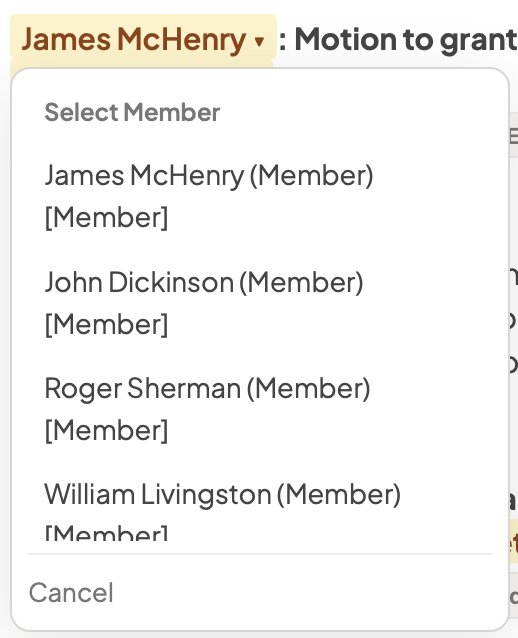
Clicking on that name will reveal a list of all members on that board. Click on a name to change individual who made or seconded that motion.
Motion Toolbar

The toolbar below the motion has 4 buttons, Transcript Jump button, a Review Audio button, an Edit button and a Confirm button
Transcript Jump Button
The transcript jump button will show a @ sign along with a timestamp identifying where in the transcript the motion occured. Clicking on the button will jump to the moment in the transcript so the transcript can be reviewed directly. To get back to the minutes, simply click on "Back to Minutes" to return to the motion that was being reviewed.
Review Motion Audio
MuniMins grabs every motion and makes the audio available immediately in-line, elimating the need to keep the recording open in another window or scan back and forth to find the right time. Just click on "Review Audio" and the system will immediately play the audio associated with that motion.
After the audio starts playing two buttons will appear that allow you to move forward or backwards by 5 seconds allowing easy review and replay. Sometimes the audio may be offset due to how the motion was made, so MuniMins will start playing a few moments before the motion actually starts. Some particularly difficult motions may require clicking the +5/-5 buttons a few times.
Edit Button
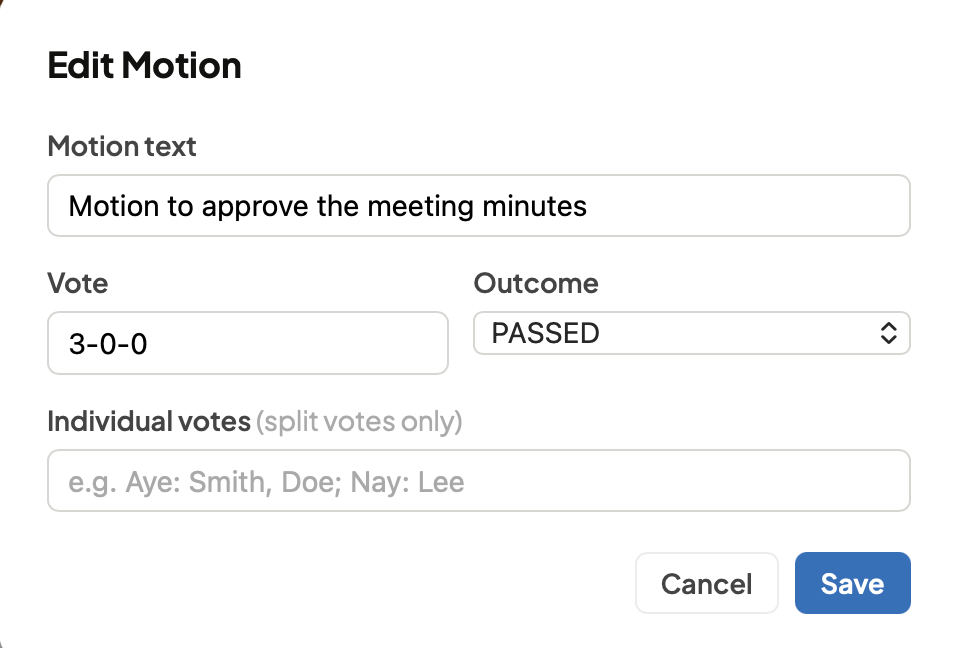
Click on "Edit" at the end of the motion to modify the motion text, vote or outcome. For motions that require individual vote records, sometimes referred to as "roll-call votes", you can enter that in the field as well.
Roll Call Votes
MuniMins is trained to automatically recognize roll-call votes. Motions tagged as roll-call votes will show the individual members' votes on the exported minutes. Motions that are not tagged a roll-calls will show the tally only.
Motions that are recognized as a roll-call vote are tagged with a small blue "Roll Call" label.

Motions can be manually tagged or untagged from Roll Call status via the checkbox on the motion edit popup.

Confirm Button
Motions that have been reviewed can be marked as "Confirmed" by clicking the confirm button.

Clicking confirm will mark the motion as confirmed as well as update the motion confirmation count at the top and bottom of the page.

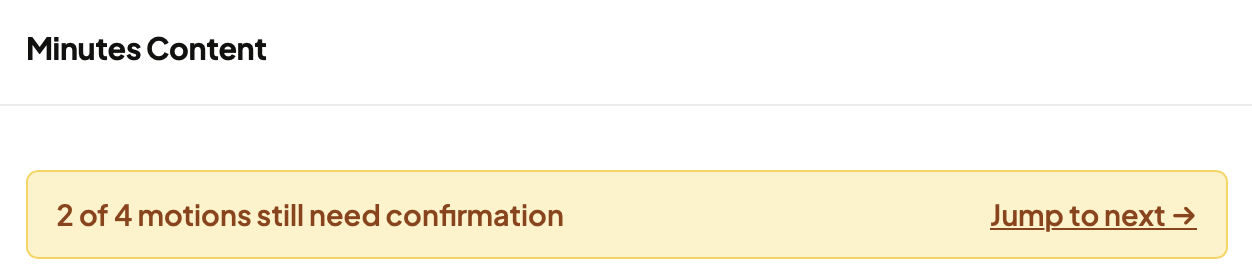
When all motions have been confirmed the count at the top and bottom of page will turn green and show all motions confirmed.
